
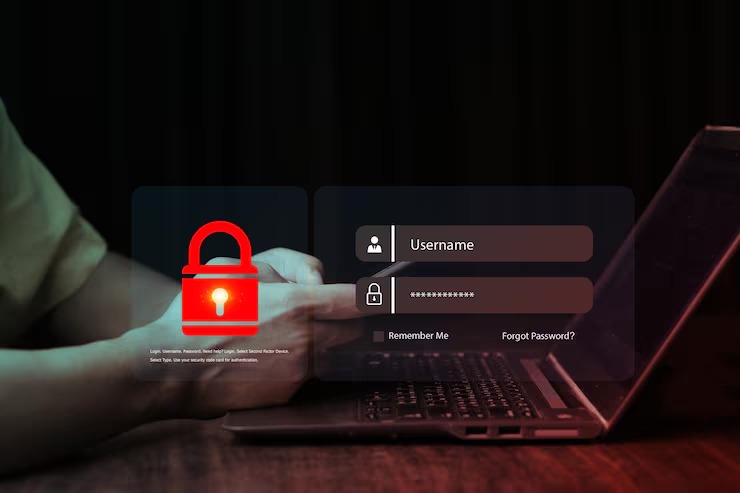
People use the internet every day for work, study, shopping, banking, apps, entertainment, and social media. This makes life faster and easier, but it also brings risks. Online scams, weak passwords, fake links, unsafe apps, and poor privacy settings often put personal data in danger. Simple online safety tips help you protect your accounts, money, identity, and private details while using the internet in daily life.
Why Online Safety Matters
Online safety matters because your personal information is connected to many online accounts. Your email, bank app, shopping profile, social media page, school login, work account, and phone apps all store some form of private data. If one account becomes unsafe, other accounts might also face risk.
Many online problems begin with small mistakes. A person might click a fake link, use the same password on every account, or share an OTP code with someone pretending to be from a company. These actions seem small, yet they open the door to scams, account misuse, and data theft.
Scammers often look for easy targets. They send fake emails, text messages, pop-ups, and social media offers to make people act fast. They use fear, urgency, or rewards to trick users. For example, a fake message might say your bank account will close today unless you click a link. A safe internet user pauses, checks the source, and avoids quick action.
Online safety also protects your peace of mind. When your passwords are strong, devices are updated, and privacy settings are checked, you feel more secure while using the internet. Good habits reduce risk and help you browse, shop, study, and work with more trust.

Use Strong Passwords
Strong passwords are one of the easiest ways to protect your accounts. A weak password like your name, birth year, phone number, or common word is easy to guess. A strong password is long, unique, and hard for others to predict.
A good password should use a mix of letters, numbers, and symbols. It should also be different for every account. If you use the same password for email, shopping, banking, and social media, one leaked password puts many accounts at risk. Different passwords keep one problem from spreading across your online life.
Password length matters more than many people think. A longer password is harder to break than a short one. For example, a password made from random words, numbers, and symbols is stronger than a short password with only one special character. You should avoid names, pet names, school names, and easy patterns.
A password manager helps you store and create strong passwords. It saves passwords in a secure place, so you do not need to remember each one. This makes it easier to use different passwords for different accounts. Choose a trusted password manager and protect it with one strong master password.
You should also turn on two-step verification where it is available. This adds another layer of safety. Even if someone learns your password, they still need another code or approval to enter your account. Use an authenticator app when possible, since it is safer than only using text messages.
Follow an Internet Privacy Guide
An internet privacy guide helps you control what you share online and who gets access to your information. Privacy is not only about hiding your details. It is about choosing what you share, where you share it, and which apps or websites receive permission.
Start with your social media settings. Check who sees your posts, photos, phone number, email address, location, and friend list. Keep personal details limited. Avoid sharing your full address, travel plans, school name, workplace details, and daily routine in public posts.
Next, review app permissions on your phone. Many apps ask for access to your camera, microphone, contacts, photos, and location. Some apps need these permissions for proper work, while others ask for more than needed. Remove permissions from apps which do not need them.
Safe browsing is another part of privacy. Visit trusted websites and check for secure website connections before entering payment details. A secure website usually starts with HTTPS and shows a lock icon in the browser. This does not mean every website is perfect, but it is a basic safety sign.
Sharing less personal data is a smart habit. Many websites ask for extra information during sign-up. Only give details needed for the service. If a site asks for your birth date, full address, or phone number without a clear reason, think before entering it.
Cookies and tracking settings also matter. Many websites track your activity for ads and analytics. Review cookie options when a website gives a choice. Pick only needed cookies when possible. Clear browser history and saved data from time to time, especially on shared devices.
Avoid Fake Links and Messages
Fake links and messages are common online threats. They appear in emails, text messages, social media chats, pop-ups, and ads. They often look like they come from banks, delivery companies, online stores, payment apps, or popular platforms.
A fake message often asks you to act fast. It might say you won a prize, your parcel is stuck, your account is locked, or your payment failed. The goal is to make you click without thinking. Before clicking any link, check the sender, spelling, link address, and message tone.
Do not download files from unknown sources. Unsafe downloads might include harmful software, fake apps, or files meant to steal data. Be careful with free offers, cracked software, unknown games, and random browser extensions. Download apps only from trusted app stores or official websites.
Pop-ups also create risk. Some pop-ups say your device has a virus and ask you to install a tool. Others show fake support numbers. Close these pop-ups without clicking buttons inside them. If your browser keeps showing strange pop-ups, clear browser data and check installed extensions.
For example, if you receive a message from a bank asking for your password or OTP, do not reply. Banks and trusted companies do not ask for private codes through random messages. Visit the official app or website yourself instead of clicking the link.
Keep Your Devices Updated
Device updates are important for online safety. Updates fix security problems, improve performance, and protect your phone, laptop, browser, and apps from known risks. Ignoring updates leaves old weaknesses open.
Your phone should stay updated because it stores photos, contacts, banking apps, messages, and email accounts. Turn on automatic updates where possible. This helps your device receive security fixes without delay.
Laptop and computer updates are also important. Many people use laptops for work, school, shopping, banking, and saving documents. An old system gives attackers more chances to enter through weak points. Restart your device after updates when asked, because some fixes start working only after restart.
Browser updates protect your daily browsing. Chrome, Edge, Firefox, Safari, and other browsers often release security fixes. If your browser is outdated, unsafe websites and harmful scripts might create more risk. Keep your browser current and remove extensions you no longer use.
App updates matter too. Old apps might have privacy problems or security gaps. Delete apps you no longer need. Fewer apps mean fewer permissions, fewer notifications, and fewer privacy risks.
Common Online Safety Mistakes
Even careful users make online mistakes. The good news is simple changes improve safety. Pay attention to these common habits and replace them with safer choices.
- Using the same password on many accounts. This puts several accounts at risk if one password leaks.
- Clicking unknown links in emails, texts, ads, or social media messages. This often leads to fake pages or unsafe downloads.
- Sharing OTP codes with others. A private code should stay private, even if someone says they work for a trusted company.
- Downloading unsafe apps from unknown websites. This risks harmful software and data theft.
- Ignoring updates on phones, laptops, browsers, and apps. Old software often has known security problems.
- Using public WiFi for private work. Public networks are not safe for banking, payment work, or sensitive account activity.
These mistakes are easy to fix with better habits. Use different passwords, check links before clicking, keep OTP codes private, update devices, and avoid sensitive work on public WiFi. If you must use public WiFi, use it only for low-risk browsing and avoid entering private account details.
Final Thoughts
Online safety does not need to feel difficult. Small daily habits protect your accounts and personal data. Strong passwords, two-step verification, privacy checks, careful browsing, and regular updates all work together to reduce online risk.
You should treat your online accounts like valuable property. Lock them with strong passwords, share less private information, check app permissions, and avoid unknown links. These habits help protect your money, identity, emails, photos, documents, and social profiles.
A safe internet user does not rush. Before clicking, downloading, replying, or entering private details, take a short pause. Check the source and think about the risk. This simple habit protects you from many common scams.
Online safety tips are useful for students, workers, parents, shoppers, and daily internet users. The more you practice them, the more natural they feel. Safe internet use starts with small choices, repeated every day.
FAQ
What are the best online safety tips?
The best online safety tips include using strong passwords, turning on two-step verification, avoiding unknown links, updating devices, checking privacy settings, and keeping OTP codes private. These habits protect your accounts and personal data during daily internet use.
How do I protect my personal data online?
Protect your personal data by sharing less information, using private social media settings, limiting app permissions, avoiding unsafe websites, and using strong passwords. You should also remove old accounts and delete apps you no longer use.
Why should I use different passwords?
Different passwords protect your accounts from wider risk. If one password leaks, other accounts stay safer. Using the same password across many accounts makes it easier for someone to enter several profiles.
Is public WiFi safe for banking?
Public WiFi is not a good choice for banking, payments, or private work. Use mobile data or a trusted private network for sensitive tasks. Public networks are more open and less secure than home or office networks.
How often should I update my devices?
Update your phone, laptop, browser, and apps whenever updates are available. Security updates fix known problems and help protect your device from new risks. Automatic updates make this habit easier.
Make Your Daily Internet Use Safer
Build better online habits with strong passwords, privacy checks, careful browsing, and regular device updates for safer everyday internet use.